Input Data
The data required for creating a SCAN/UHD project is important to understand:
- Static scans: expected format is gridded/structured E57 or PTX
- Panoramic photos: JPG in 2:1 ratio
- Plans: PNG/JPG (ideal size: 5000px in height or width)
Once all these elements are ready, it is possible to quickly create a MySurvey project integrating this data.
E57 Format Specifics
The E57 format is an "Open-source" format, which means that each software can import and export it in its own way. It is therefore possible that E57 files from certain software may not be correctly supported. In that case, it is recommended to contact Cyclife DS support, who will assist you to resolve the issue quickly and will correct the E57 import software to support this type of data.
The E57 format can contain point cloud data from fixed scans or mobile scans. To extract fixed scans from an E57 point cloud, this E57 must be "gridded" or "structured" on export. Otherwise, the individual position information of the stations is lost and the file will not be usable as a fixed scan in MySurvey.
Data Conversion to MySurvey Format
There are several methods to convert data and integrate it into a MySurvey project. The current documentation only discusses the most intuitive method but will include other methods in the future, sometimes more optimized for certain use cases.
Today, it is simpler to prepare the input data before project creation.
Here is an appropriate folder structure for working in a clear environment:
- Work Folder
- INPUT_DATA:Folder containing all data before processing
- E57
- UHD
- PLANS: Plans in original format (DWG, PDF, PNG, JPG)
- JPGColor: Scan colorization images
- …
- LOCATORS_RAW: Folder to which E57 files will be converted
- LOCATORS_UHD_RAW: Folder to which UHD files will be converted
- PLANS: Folder to which final plans will be exported
- INPUT_DATA:Folder containing all data before processing
MySurvey Import
First, open the MySurvey Import tool (located next to the MySurvey Manager executable).
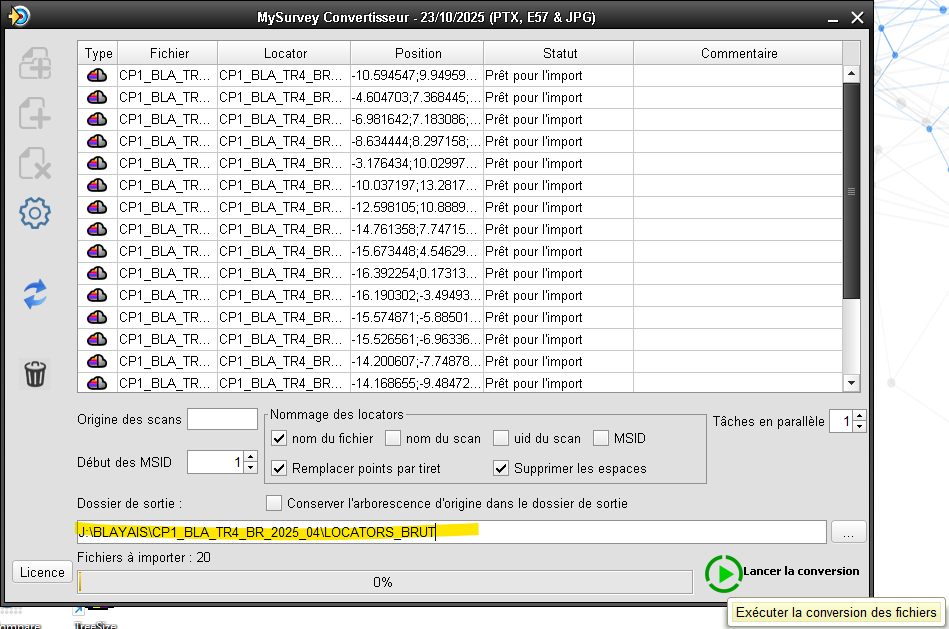 Once the import tool is open, simply drag and drop the input data into the application (E57, PTX or JPG), choose an output folder and start the conversion. It is possible to adjust certain parameters by clicking on the gear icon (see detailed MySurvey Import documentation LINK MISSING).
It is strongly recommended to separate the conversion of Scans and Panoramic Photos.
The colorization and coordinate system change processes occur at this conversion stage but are not yet supported by the Manager and will not be described here.
Layout images conversion
Plan conversion to image format (JPG/PNG) is not currently supported by the MySurvey Manager suite. Third-party tools must be used to convert the format. Here are the currently implemented processes depending on formats:
- DWG: Plot to PDF format in AutoCAD
- PDF: Convert to PNG in GIMP
- PNG/JPG: Clean and adjust in GIMP
Background plan images are adjusted not to exceed 5000px in height or width and are cleaned to keep only the constructions in the image.
Tip before using MySurvey Manager:The buttons to save the project in its current state and publish the final project can be confusing:
- Save (Floppy disk button): Saves temporary project modifications in a "LOCATORS_RAW" folder contained in the project. It does not copy/move any data from their original location. If the original data is deleted or moved, the project modifications will no longer be publishable.
- Publish (folder icon): Applies temporary modifications to the final project, copies, converts or moves data to final folders. When this button is pressed, the project will no longer be editable in place.
Creating a Blank Project
Once the input data is prepared, a blank project can be created to integrate this data.
To do this, simply open MySurvey Manager and click on the "+" button.
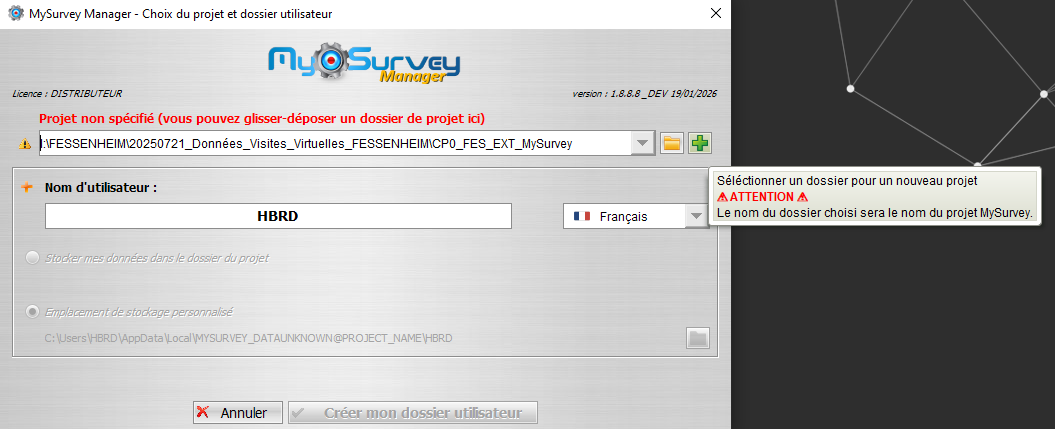
Then in the Windows window that opened, choose an empty folder that will be the project root (the project name will be the name of this folder).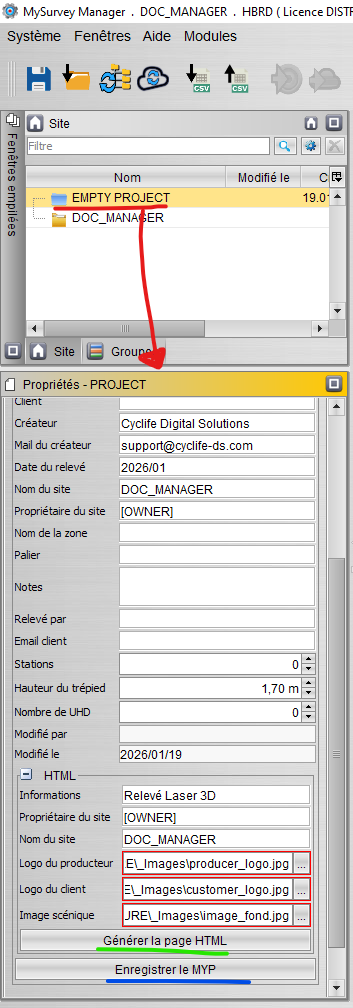
Once the Manager is open, it is possible to define the metadata related to the project in the root node properties (in red).
Once the information is defined, press the "Save MYP" button (in blue) to apply this information. (The Project Name field is not editable in MySurvey Manager)
It is also possible to modify the cover page information and press the "Generate HTML page" button (in green) for it to update with the defined information. The cover page image, if defined, is automatically sized to display correctly.
Integrating Data into the Project
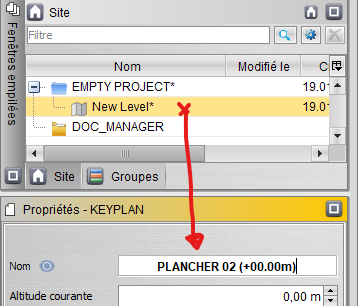
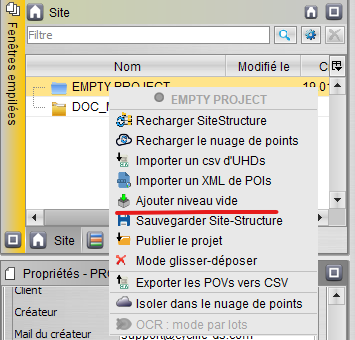
Now that the base project is created and the data is ready to be integrated into the project, floors must first be created that will host the stations. 2 ways to do this:
- Create 1 single floor and put all stations in it (They will be dispatched in the metadata modification step)
- Create all floors and add the corresponding stations to each floor (Recommended for projects with few floors)
To create a floor, simply right-click on the project root node and click on "Add empty level" then name it in the level properties.
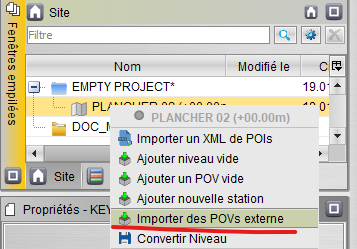 To add stations to a floor, right-click on the floor node and choose "Import external POVs" then choose the folder containing the stations you want to integrate into the project.
2 stations in the same project (even on 2 different floors) cannot have the same name. It is recommended to add UHD stations in a second step as they often have the same name as the associated scan station.
Once the stations are added, save the project using the "Floppy disk" button, which will create in the project a "LOCATORS_RAW" folder in the "DATA" folder containing the project's temporary data. This folder contains the "locators.csv" file which will allow us to prepare station metadata by opening it in Excel.
Metadata Modification
See the detailed documentation "locators.csv" file before continuing.
If UHDs were not added to avoid naming duplicates, now that the scans have been renamed, the UHDs can be added. And the metadata filling process can be performed a second time for the UHDs.
Plan Calibration
Now that the floors have been created, they must be assigned a background plan image and it must be calibrated to place it in a coherent coordinate system. To do this, 2 real points must be associated with 2 points on the image.
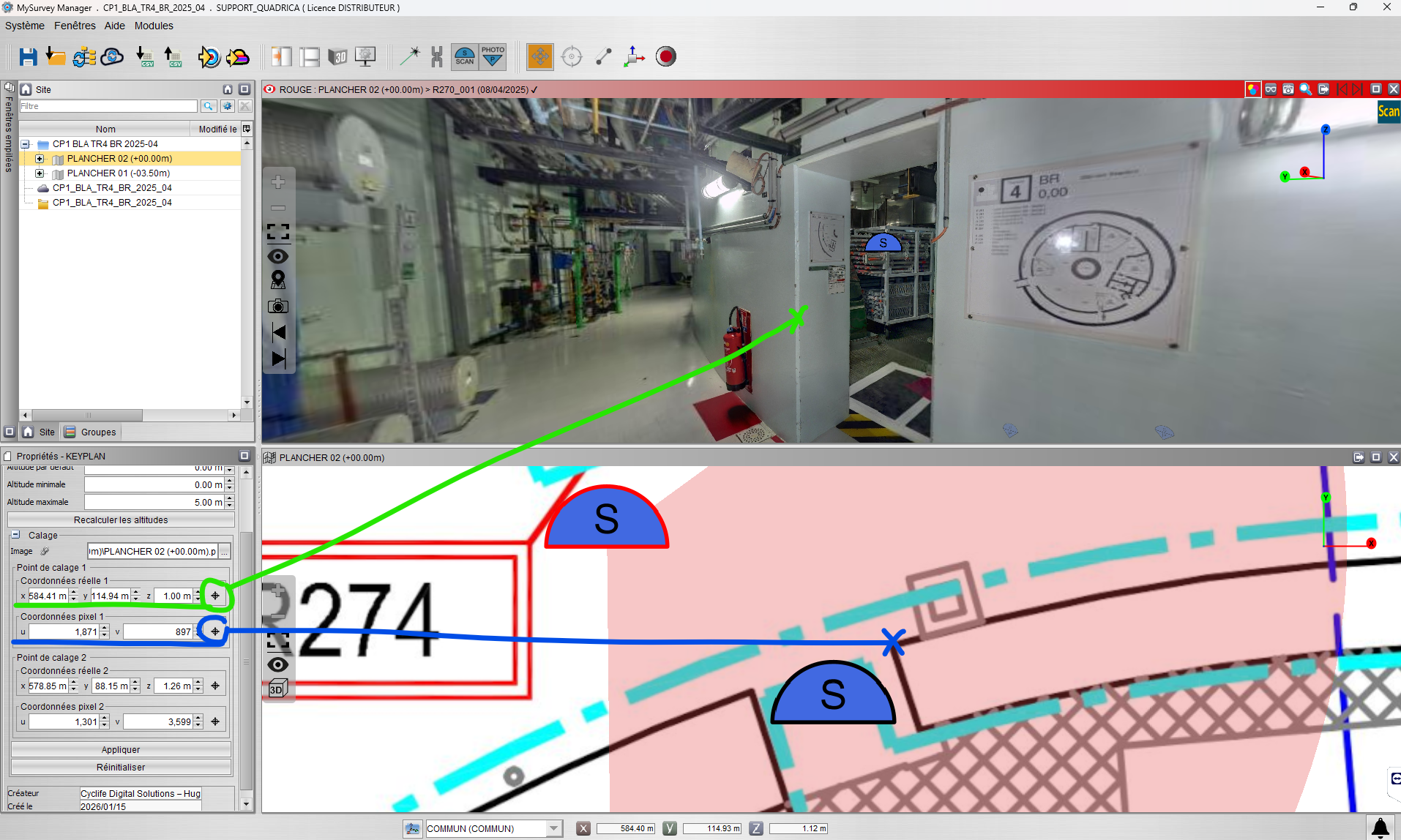
You must choose 2 recognizable locations in 3D and 2D (structural wall corner). Avoid choosing movable elements such as openings.
In the floor properties, for the 2 calibration points, choose 1 point in the 360 scan view or 3D view (In green), and 1 point in the 2D view (In blue).
Repeat this step for the second calibration point and press "Apply". The plan should update with the stations correctly placed.
To check the calibration, you can use the laser (Shortcut "D") and aim at the walls. The laser should also follow the walls on the plan.
Plan Altitude
A plan's altitude is modifiable with the 4 fields at the top of the property window:
- Current Altitude: Altitude at which objects will be created if they are created on the plan. This altitude can be modified by a user in MySurvey.
- Default Altitude (REF): Also called reference altitude, it represents the floor's ground altitude for the majority of the floor. It also defines the default current altitude of the floor.
- Minimum Altitude (MIN): Minimum altitude to display a 3D object on the plan. Any object located between this altitude and the maximum altitude will be visible on the 2D view. It is generally equal to the default altitude.
- Maximum Altitude (MAX): Maximum altitude to display a 3D object on the plan. Any object located between this altitude and the minimum altitude will be visible on the 2D view. It is generally equal to the minimum altitude of the upper floor.
An example of floor altitudes to understand the principle (side view):
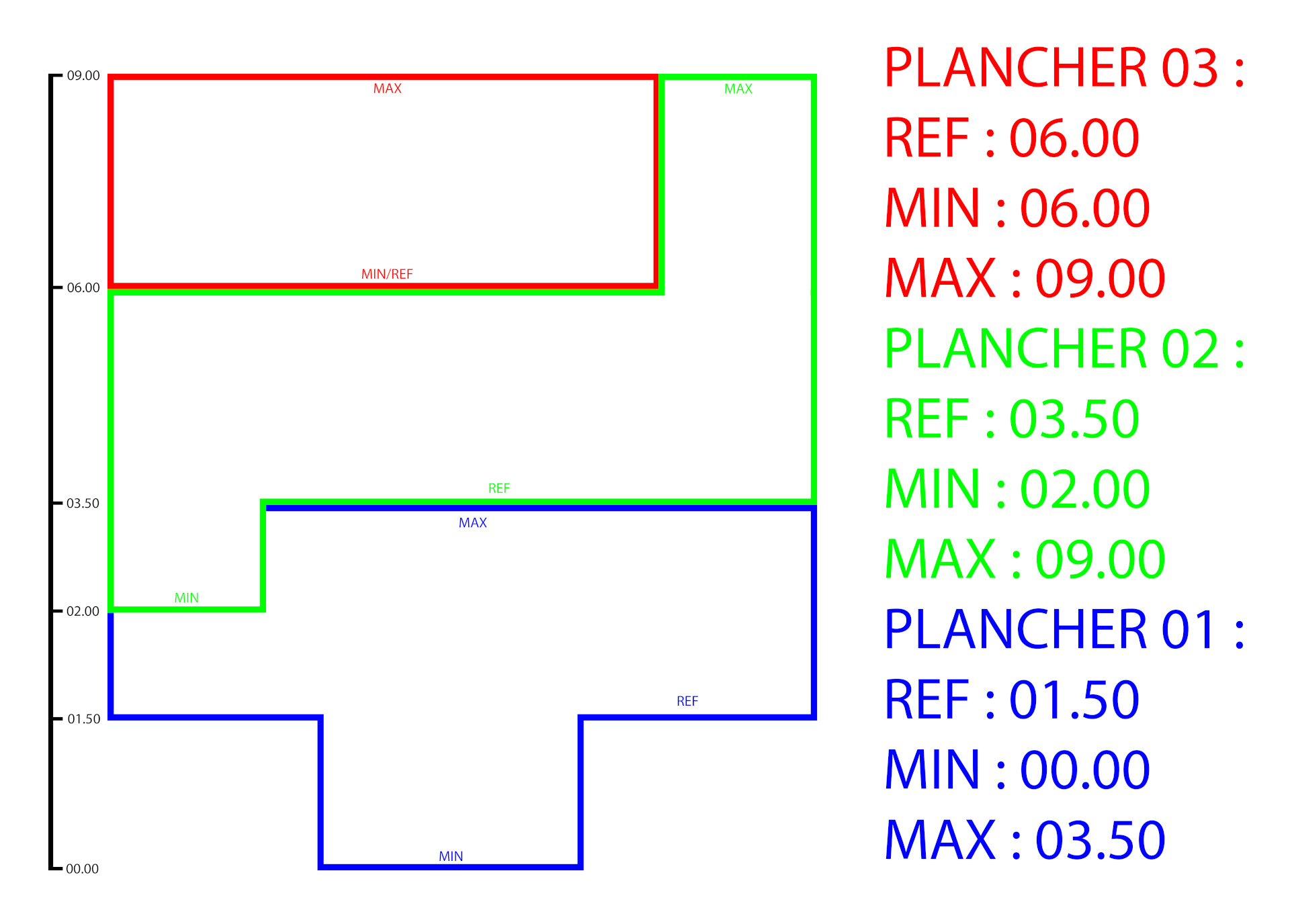
The "Recalculate altitudes" button allows automatic estimation of a floor's altitude. It will never be exact, so it is recommended to manually correct the result. The calculation is as follows:
- Default Altitude: Median of all station altitudes minus tripod height (1.70m by default)
- Minimum Altitude: Altitude of the lowest station on the floor minus tripod height
- Maximum Altitude: Altitude of the highest station on the floor plus 3 meters
Publication du projet
The project is in finalization state. This is the moment to perform a final check before project publication. Point cloud generation occurs after publication in the current version of MySurvey Manager.
Once the check is done, refer to the documentation Saving & Publishing project
Création du SIOC
 Once the project is published, the SIOC Generator button in the toolbar opens the SIOC on the project data. To customize the parameters, refer to the documentation dedicated to this tool : LINK MISSING.
 Then start the conversion. Once finished, it is possible to reload the Point Cloud in MySurvey Manager to check the SIOC generation.
The project is finished. It is recommended before using it to exit MySurvey Manager and return to MySurvey to avoid altering the project.
Was this article helpful?
That’s Great!
Thank you for your feedback
Sorry! We couldn't be helpful
Thank you for your feedback
Feedback sent
We appreciate your effort and will try to fix the article