Document version: 1 | Date: 02/06/2025 |
MySurvey FAQ | Online access to the support page: Support: Help center |
For end users and solution administrators
Table of contents
I. Installation and configuration.
B. License management and activation.
A. Opening and closing the software or a project.
C. Questions about display in Panoramic view.
D. Questions about objects and their properties.
E. Questions about the plan display.
III. Troubleshooting and support.
I. Installation and configuration
A. MySurvey installation
Q: How do I install MySurvey?
A: MySurvey does not require installation. Simply extract the archive supplied and run mySurvey.exe (if on local disk) or mySurvey_Network.exe (if on network) .
Q: What are the minimum and recommended system requirements for MySurvey?
R :
Here are the minimum requirements :
- Windows 7/10 (64-bit)
- 2.3GHz dual-core processor
- 4 GB RAM
- Integrated Intel HD 4000 GPU .
Here are the recommended configuration : Intel Core i5 4th eneration or higher
6 to 8 GB RAM
- Nvidia GeForce GT 640 or higher dedicated graphics card .
We advise against using the higher-end "Quadro FX" GPUs, which require a special configuration for MySurvey to run on them.
Q: How can I improve performance with an Nvidia Quadro or other card?
A: Update the drivers on the Nvidia website and configure the 3D parameters on Workstation App - Dynamic Streaming via the NVIDIA control panel .
Q: Does MySurvey require conventional installation with a setup program?
A: No, MySurvey requires no installation. It works in portable mode. Simply extract the archive provided and run mySurvey.exe (for a local disk) or mySurvey_Network.exe (for a network disk).
Q: Can I run MySurvey from an external hard drive or network folder?
A: Yes, MySurvey can be run from an external drive or network folder. However, we recommend using mySurvey_Network.exe for best performance if the software is stored on a network.
Q: What user rights do I need to launch MySurvey?
A: MySurvey does not require administrator rights. The user only needs to have file execution rights and write rights to the user folder where the data will be stored.
Q: Why doesn't MySurvey launch after extracting the files?
A: There are several reasons why MySurvey cannot be launched:
- Corrupted files: Try re-extracting the files,
- Antivirus or firewall blocking execution: Check security settings,
- Lack of execution rights: Make sure the user has the necessary permissions.
Q: Where should I store my projects and user data to avoid performance problems?
A: We recommend storing projects on a fast local disk (SSD if possible) rather than on a network, to improve performance and avoid slowdowns.
Q: How can I update MySurvey without disrupting my working environment?
R :
- Download the new version via the customer portal : Support : Help center and extract it into a new folder.
- Test the new version before deleting the old one.
- Keep a copy of the old version in case of problems.
- Make sure your projects and data are stored in a location independent of the application folder.
B. License management and activation
Q: How do I activate MySurvey with a PRO license?
A: On first launch, enter your activation code received by e-mail. If your PC does not have Internet access, use manual activation via the activation file .
Q: How does license management work with CryptLex?
A: CryptLex lets you activate licenses online or offline, with options for fixed or floating licenses .
Q: How do I release a license used on another workstation?
A: Go to Help > License in MySurvey and click on Deactivate via Internet .
C. Access your user file
Q: How can I access my user's folder on the Windows workstation to find the objects and notes I've created?
R :
- By default, user data is stored locally on workstations. (see default folder definition in system.conf).
This is often the default location for exports from MySurvey
To access this file :
- use the MySurvey menu: Windows/Open my user folder
- or, using Windows Explorer, enter in the "path" field: %localappdata%\MYSURVEY_DATA and choose the folder corresponding to the project concerned
- this is also where application logs are stored, which can be transmitted to analyze anomalies
- By cleaning up this folder (deleting files), you can start again from scratch, i.e. return to the initial project as it was delivered to you the first time. BE CAREFUL HOWEVER, if you value your work, we advise you to make a backup copy of this folder.
II. Using MySurvey
A. Open and close software and projects
Q: I can't open the software, it seems to freeze at X% during launch. What should I do?
A: User folder "corrupted"? Rename user folder and relaunch MySurvey
Q: I can't close the software, I can't quit it. What should I do?
A: Close via the taskbar by right-clicking on the MySurvey icon and choosing "Close".
Alternatively, in the task manager the process can be called either MySurvey or the "OpenJDK Platform binary" process.
B. Navigation and interface
Q: How can I customize the display and navigation?
A: Use the options in Preferences to change language, theme, unit of measurement and display settings .
Q: How do I display the XYZ coordinates of a point?
A: Hover your mouse over the point in the 3D view, or use the localization tool in the toolbar.
Q : The tree structure of my project or objects is no longer visible. How can I restore it?
A: Press the B key or click on the first button to bring up the side panel with the station and group tree, and the property window.
Q: Nothing is displayed in MySurvey's central area.
A: All windows have been closed. Opening a station or clicking on a map will display it in the central area.
Q: When I click on Restore layout (or press "O"), only the plan is displayed.
A: The red and green views have been closed, so you need to open a station to display it.
Q: When MySurvey is opened, the toolbar shows greyed-out icons and object creation is not possible.
A: MySurvey may be in Quick Ride mode, press Ctrl+B to cancel this mode (also known as Quick Navigation).
Q: When I open MySurvey, a window informs me that MySurvey has not been properly closed and asks me whether or not I want to run Safe Mode.
A: If the last MySurvey launch was unsuccessful, you will be prompted to open the project in safe mode: Clicking "yes" only disables advanced GPU-based functions (clash detection, virtual stations, demolition). In most cases, you should click "no": no safe mode.
C. Questions about the display in Panoramic view
Q: There are very few station icons and/or objects visible in my panoramic view.
A: Stations/objects are probably more than 10 m from the current station. By going to display parameters (keyboard shortcut "A") and the Object and Station Visibility tab, you can modify the visibility distance of stations/objects. The maximum visibility distance varies according to computer power. If it has less than 4 GB RAM, the maximum viewing distance will be limited to 20 m, otherwise it is limited to 100 m.
Q: Some objects are not visible even though they are not hidden by any part of the scenery.
A: As with stations, only objects more than 10 m away are visible from the current station. By going to display parameters (keyboard shortcut "A") and the Object and Station Visibility tab, you can modify the visibility distance of objects. The maximum distance varies according to the power of the computer. If you have less than 4 GB RAM, the maximum viewing distance will be limited to 12 m, otherwise it will be limited to 20 m.
Q: Why are some eyes blue and others light gray?
A: Blue eyes represent stations directly visible from the current station, while light grey eyes represent stations that may be behind a wall, a feature or an object.
Q: Images appear blurred and high quality images only load in the middle of the panorama.
A: It may be that the "walk" mode is activated. If this is the case, MySurvey's title bar will indicate [Quick Ride Mode]. To exit this mode and return to normal application performance, press the space bar. A message will appear to indicate that you have exited the walk mode.
Q: After changing stations, objects are no longer displayed and a forbidden symbol prevents measurements being taken.
R :
- Walk mode is activated. In MySurvey's title bar, it will say [Quick Walk Mode]. To exit this mode and return to the object display, press the space bar. A message will appear to indicate that you have exited walk mode.
- Check that the view is SCANORAMA / Vue 360 and not UHD (Ultra High Definition photos),
- Check that there are no objects already being created, no actions in progress, and no points missing (completeness of Point Cloud visible by activating "mask" mode) under the mouse.
Q: When creating an object, the station icons get in the way when creating a point.
A: Use temporary masking of stations by pressing the "ALT" key.
D. Questions about objects and their properties
Q: I want to change the parameters of an object in the properties window, but nothing changes.
A: There may be several reasons for this:
- The group is locked. A padlock symbol appears next to the name of the group where the object is located. To edit a locked group, you must appropriate it (if you haven't already done so). Once appropriated, the group containing the object to be edited will be under the OBJECTS group and not under the IMPORT group. Next, unlock the group by right-clicking on it and clicking on "unlock". The parameters in the object property window will then be modifiable.
- The second reason is the position of the mouse when entering the text zone. The mouse must remain above the property window for the input zone to remain active.
Q: The point cloud extract doesn't look complete and is in black and white.
A: The link to the folder containing spatial indexing may be incorrect. To do this, check that there is a folder named SPATIAL_INDEX in the project's DATA folder. If not, rename the folder, restart MySurvey and restart point cloud extraction.
Q: Searching for a device using the 'filter' field is unsuccessful and the software seems to be blocked.
R :
- response time depends on the number of objects loaded in the project. You can speed up the function by restricting it to name searches (by unchecking type, id and comment searches),
- Click on the cogwheel to the right of the filter area to access the options,
- Check that the name in the filter is spelled correctly.
Q : I can no longer find my objects in the drop-down list in the "Groups" window.
R: a filter must be applied to a previous search with no result, go to the filter window and delete the letters of the object entered.
E. Questions about the plan display
Q: objects are not displayed on the map
R :
- Check that the plan displayed is the one to which the objects are attached
- Check in the property window that the "plane" pictogram is activated for the selected group or object:
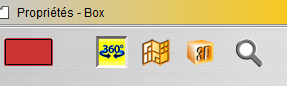
PS: Objects are displayed on the plan whose altitude range matches that of the objects to be displayed. When selecting the floor, check in the property window that the min, max and current altitudes are consistent with those of the objects.
Q: I've lost my plan. How can I find it again
R :
- plans are listed in the SITE tab, and selecting one automatically displays it in the PLANS view,
- from a panoramic view, by clicking on the "LOUPE" icon in the view title bar, this station is located in the plan view
- from 3D view, right-click Focus on plan view.
F. Data import and export
File formats and conversions
Q: What file formats are compatible with MySurvey?
A: MySurvey supports PTX and E57 files for scans, as well as DWG files for drawings.
Q: How do I import a project into MySurvey?
A: Drag and drop your project into MySurvey or select the project folder from the opening menu .
Q: How do I export data from MySurvey?
A: You can export files in JPEG, MSZ, CSV or TXT via the Export menu .
Q: A file is locked in the Import folder. What should I do?
A: Imported files are locked by default.
To be able to modify objects, you need :
- make it your own (right-click, "move to my objects")
- unlock the folder thus present under the "Objects" node
G. Advanced modules
Advanced features
Q: How do I use the Functional Reference (RF) module?
A: Import a CSV file with functional markers, then use the context menu to locate them in the views.
Q: How do I slice or segment a point cloud?
A: Use the segmentation tools under Advanced Modules to create boxes, cylinders or isolate parts of the cloud .
III. Troubleshooting and support
A. ⚠️ Common problems
Q: MySurvey won't launch. What should I do?
A: Check that your PC meets the minimum system requirements and that MySurvey is not blocked by your antivirus or firewall .
Q: I have a license problem. How can I solve it?
A : If your license is not activated, check your Internet connection. If your network is restricted, proceed with manual activation .
Q: How can I report a bug or ask for help?
A: You can send a request to your MySurvey representative or administrator. If the problem is not due to incorrect handling, the administrator can open a ticket via the MySurvey interface or contact support either :
- Via the custom portal : Help center
- Via the support email address.
Was this article helpful?
That’s Great!
Thank you for your feedback
Sorry! We couldn't be helpful
Thank you for your feedback
Feedback sent
We appreciate your effort and will try to fix the article