Context
The Manager is expected to be able to fully modify a project, including station names (UHD, Scans and POI). This document provides information on how to accomplish this use case, current limitations, and workarounds for these limitations if they exist.
A video version of this documentation is available from support-ds@cyclife.com
Method 1: Via MySurvey Manager
Station renaming can be done directly via MySurvey Manager software and is recommended for individual renaming. For renaming multiple elements, it is recommended to use the method 2
REMINDER: Before any modification of a project containing published data, note that republishing a project will make a copy of the project with modifications so as not to alter the original project.
Step 1: Editing the station name
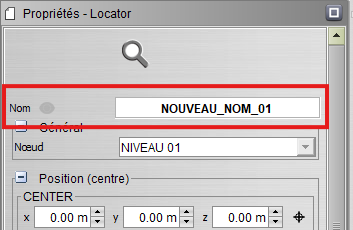
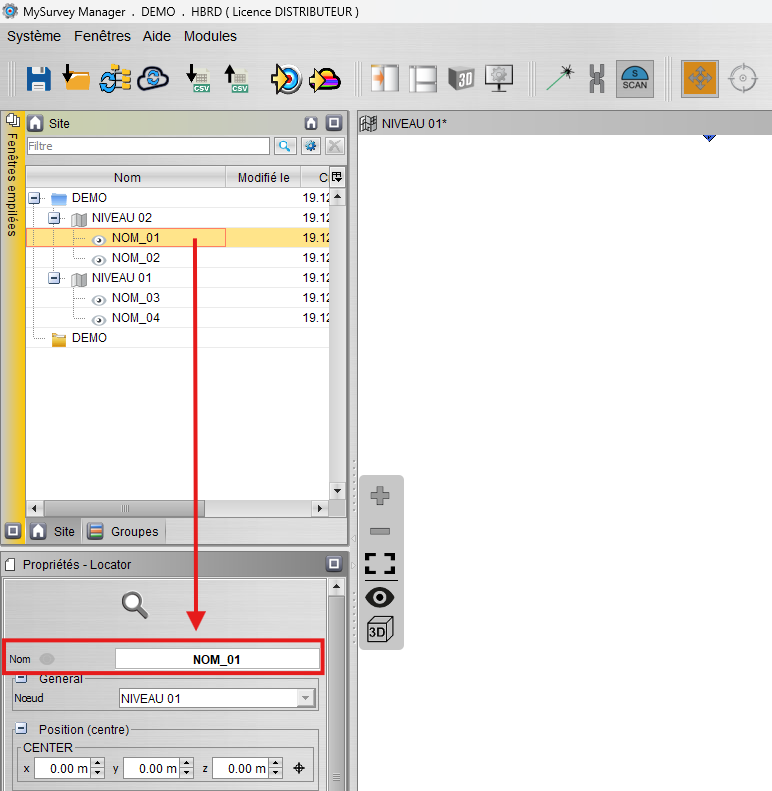 In MySurvey Manager, selecting a station will display in the Properties window (Bottom left by default) the station information starting with its name.
Then write the desired new name in this text field.
Repeat this step on all stations to rename.
Step 2: Save (Optional)
 Saving will ensure that in case of MySurvey closing, these modifications will not be forgotten. It is optional because publishing also performs a save first.
Method 2: Via the locators.csv file
When you want to rename a large number of stations or apply a general formula to renaming, the most efficient way is to use the locators.csv file (Complete documentation: "locators.csv" file)
Step 1: Save
 To generate the "locators.csv" file, the first step is to open MySurvey Manager and save the project, which will create in the project's "DATA" folder a "LOCATORS_RAW" folder containing the "locators.csv" file.
Step 2: Edit stations names
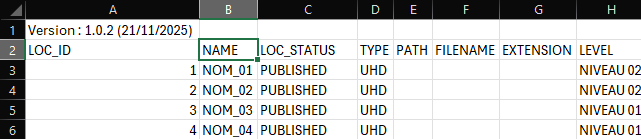 Once opened in Excel, the locators.csv file lists all stations present in the project with information that may be useful (Station status, metadata, position, etc.)
It allows modifying the "NAME" column representing the station name.
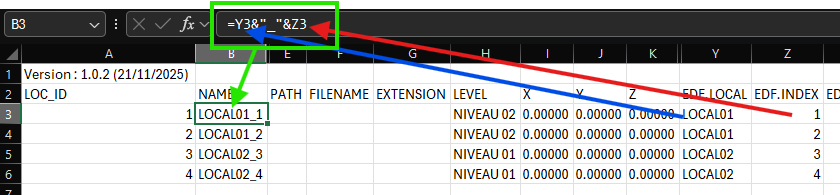 By using Excel functions, it is possible to assign each station a name based on the room, its index, or other metadata.
Once renaming is done, you can save and close the file.
Step 3: Refresh MySurvey Manager
 If MySurvey Manager has not been closed, simply click the button to refresh the structure so the software rereads the locators.csv file and applies the modifications.
Publishing Modifications
To apply modifications to the final project, see the documentation Saving & Publishing project
Was this article helpful?
That’s Great!
Thank you for your feedback
Sorry! We couldn't be helpful
Thank you for your feedback
Feedback sent
We appreciate your effort and will try to fix the article