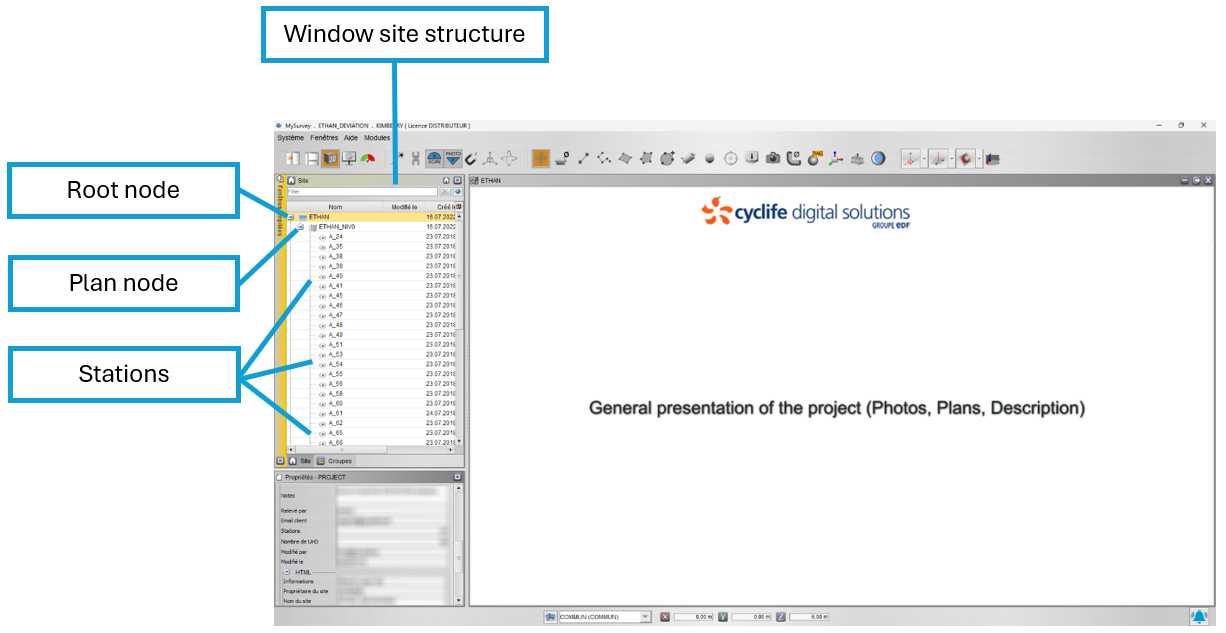
When MySurvey first starts up, it presents a project presentation page.
On the left, a “Site Structure” tree structure allows you to navigate through the various levels of the installation. Each element that can be unfolded is called a node.
By selecting a main node, the plan corresponding to the node is displayed in the Plan View window.
Beneath the main nodes, the various viewpoints on the corresponding level or zone appear.
On subsequent launches, the workspace will be displayed as it was on closing.
The following image shows the workspace as it will most often appear.
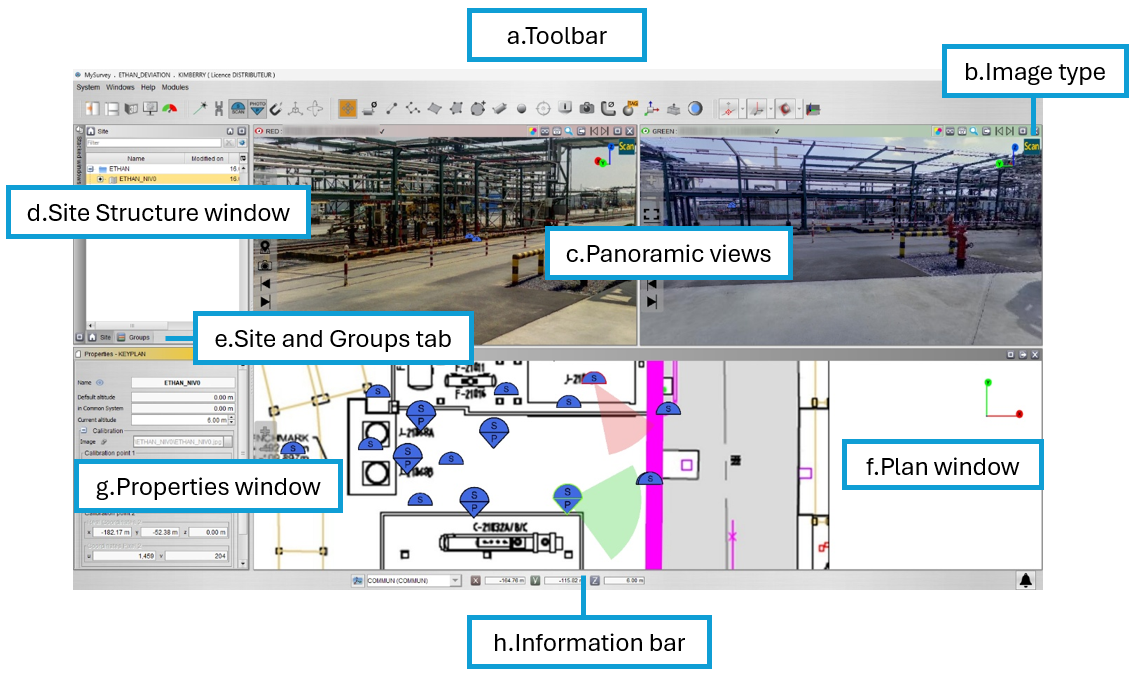
a. Toolbar: presents workspace layout functions and objects available for creation.
b. Image type: image loading information and image type (Scan or UHD if present). Keyboard shortcut “H” to switch between the different types if available.
c. Panoramic views: 360° tour of the project from different shooting positions.
d. Site Structure window: tree structure of the site at different levels or zones, with a list of all viewpoints.
e. Site and Groups tab: allows you to classify objects into groups (like a directory).
f. Plan window: plan view showing the positions of viewpoints and objects displayed.
g. Properties window: properties of the selected object or tree node and related viewing functions.
h. Information bar: status and information on current actions.
All windows can be moved, stacked, minimized or hidden. This document is based on the default layout of the workspace.
This layout can be reset by clicking on the button:  or by using the menu Windows->“Restore layout”, or by using the keyboard shortcut “O”.
Was this article helpful?
That’s Great!
Thank you for your feedback
Sorry! We couldn't be helpful
Thank you for your feedback
Feedback sent
We appreciate your effort and will try to fix the article